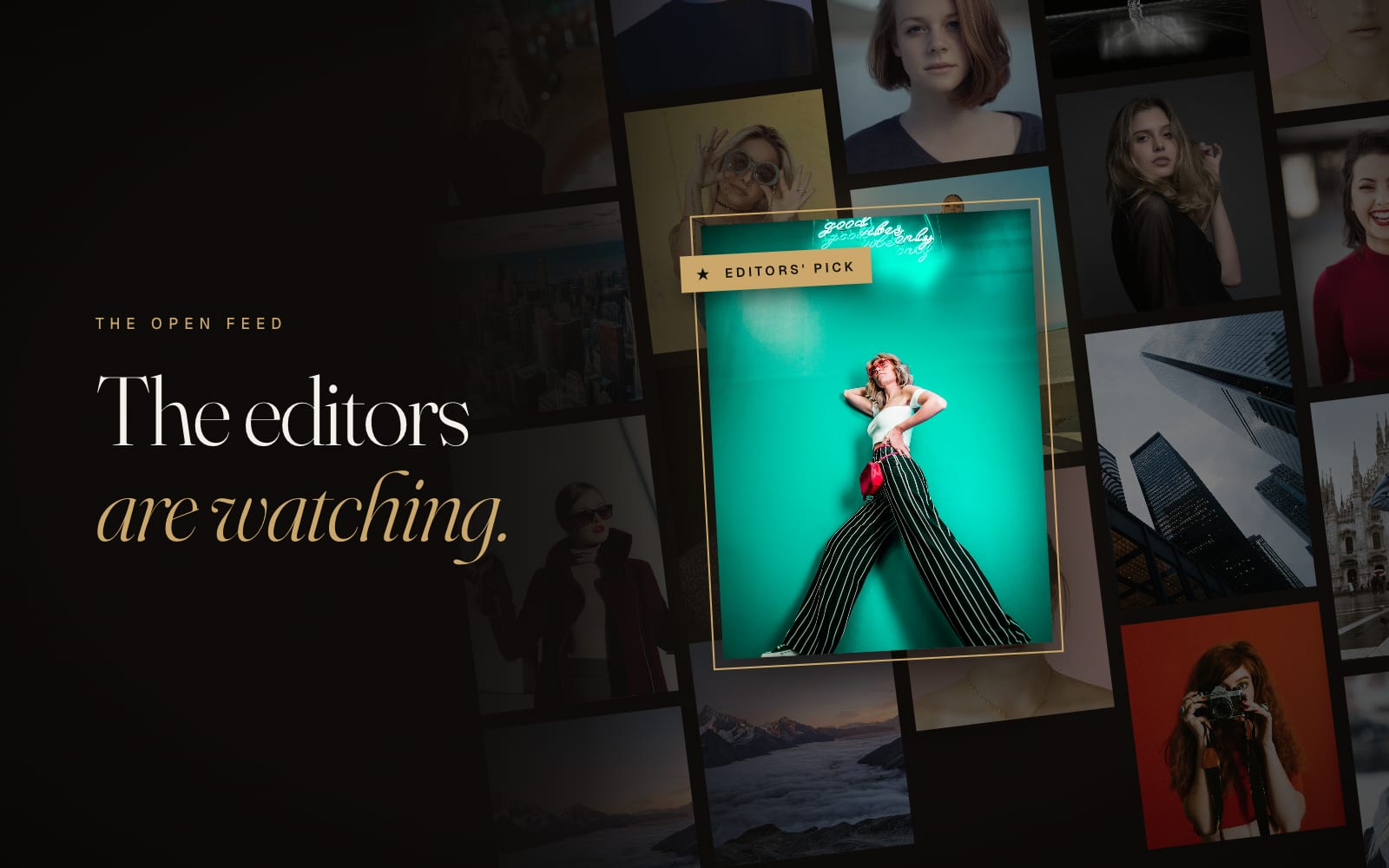
The Open Feed is the shortest road from your camera to an editor's screen. Every Monday a new theme opens. You upload up to two photos for it, and the editors of all five magazines go through the feed all week, picking works for the homepage, for their channels and for their issues.
Why bother? A magazine submission asks for a whole series and a form. The feed asks for one good frame and about two minutes. Your first two live photos each week add +5 each to your Artist Score, and every editors' selection adds +50, puts the magazine's badge on your photo and quite often starts a conversation about a full series.
Step 1. Find this week's theme
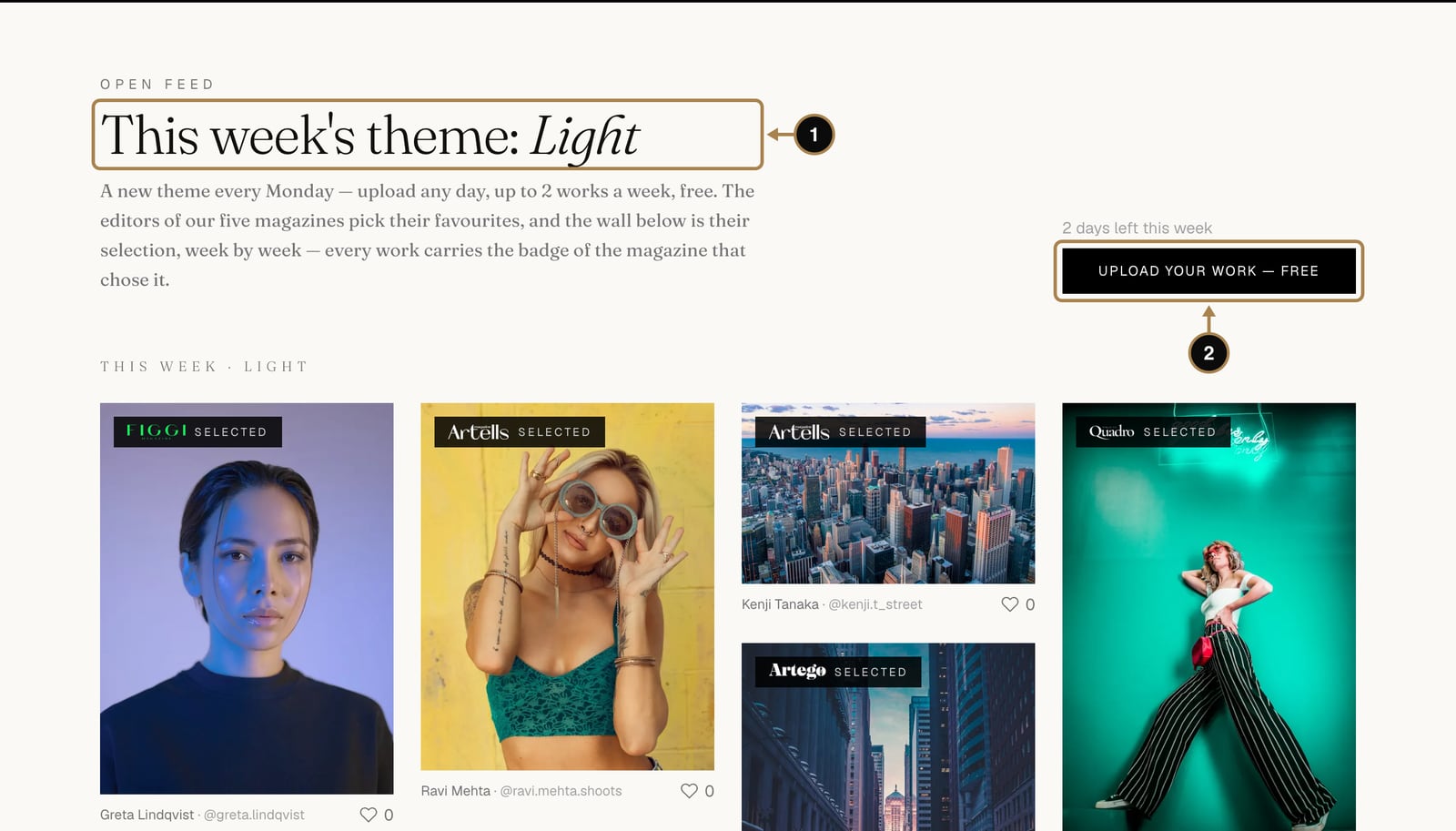
Open Open Feed in the top menu. The headline shows this week's theme (1), here it is “Light”. Under it is the editors' wall, where every work carries the badge of the magazine that chose it. Scroll through it first: it's the fastest way to see what catches an editor's eye this season.
When you're ready, click Upload your work (2). The line above the button shows how many days the theme has left.
Step 2. Choose your photos
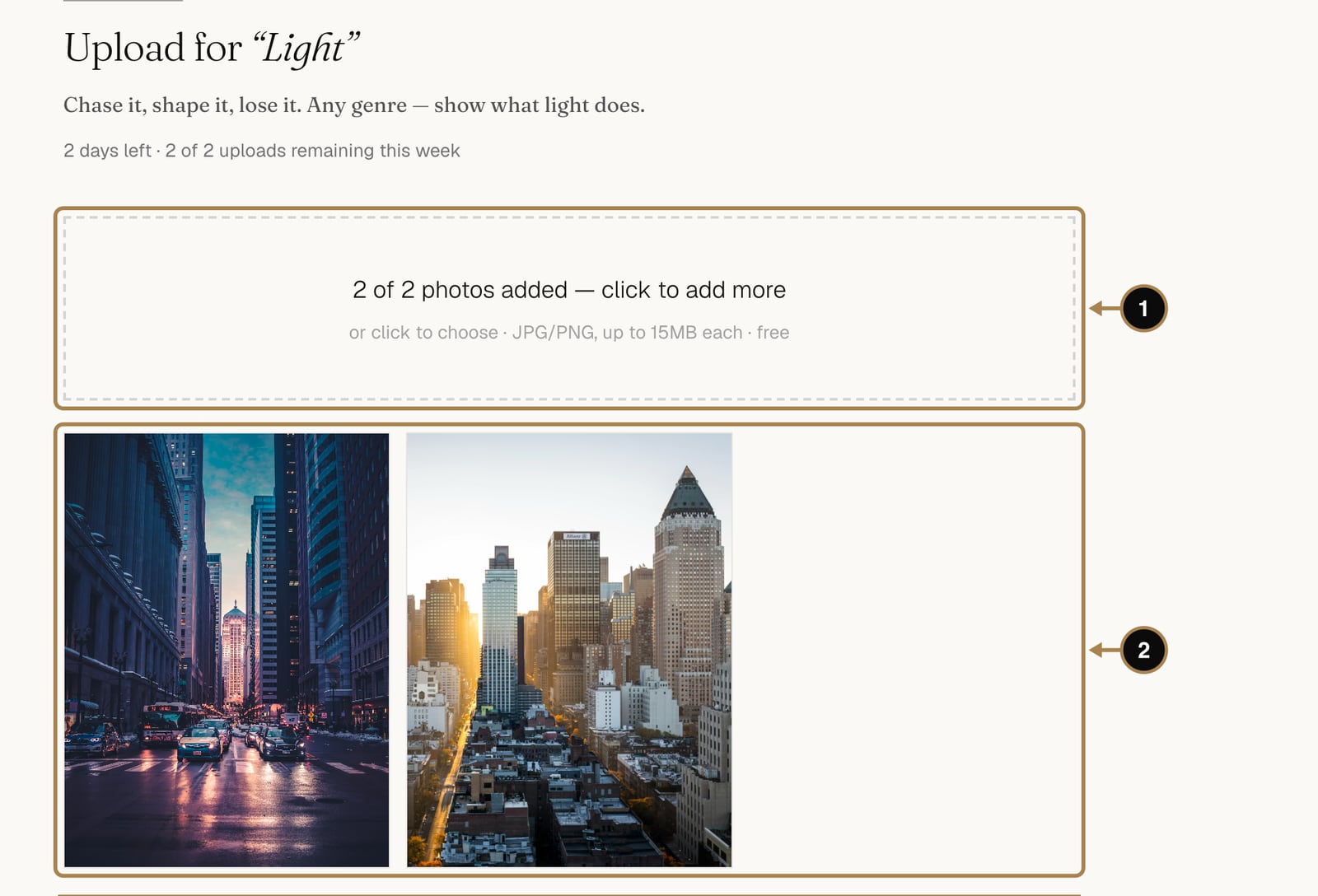
Click the dashed box (1) or drag your files onto it. JPG or PNG, up to 15 MB each. The previews (2) appear right below, so you can check you picked the right frames before anything is sent.
Everyone has two uploads a week, PRO members have ten. The line under the page title shows how many you have left. Pick work that answers the theme: the editors look at the theme first and the photo second.
Step 3. Caption, magazine, publish
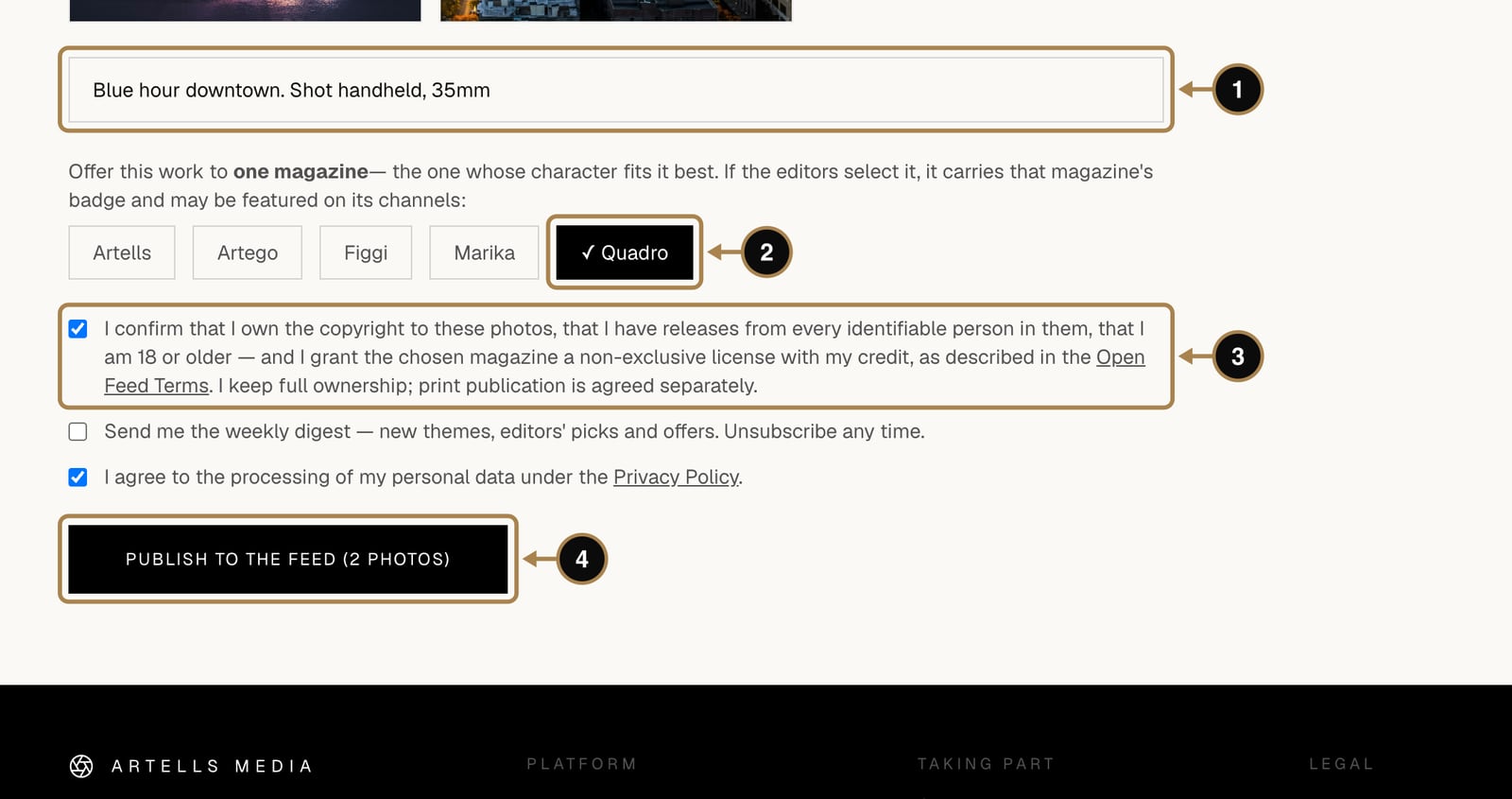
- Caption (1). Optional and useful: a title and team credits. “Blue hour downtown. Shot handheld, 35mm” is plenty.
- Magazine (2). Offer the work to the one magazine whose character fits it best. Quadro loves form and geometry, Marika loves faces and fashion, Artego loves a bold idea. If the editors select the photo, it carries that magazine's badge. Unsure? The magazines page has a one-line portrait of each title.
- Rights (3). Tick the box to confirm the photos are yours, the people in them agreed, and the magazine may show the work with your credit. You keep full ownership.
- Press Publish to the feed (4).
An automatic check looks at every photo. Clean ones go live straight away. Anything it isn't sure about waits for an editor to have a look.
Step 4. Watch what happens
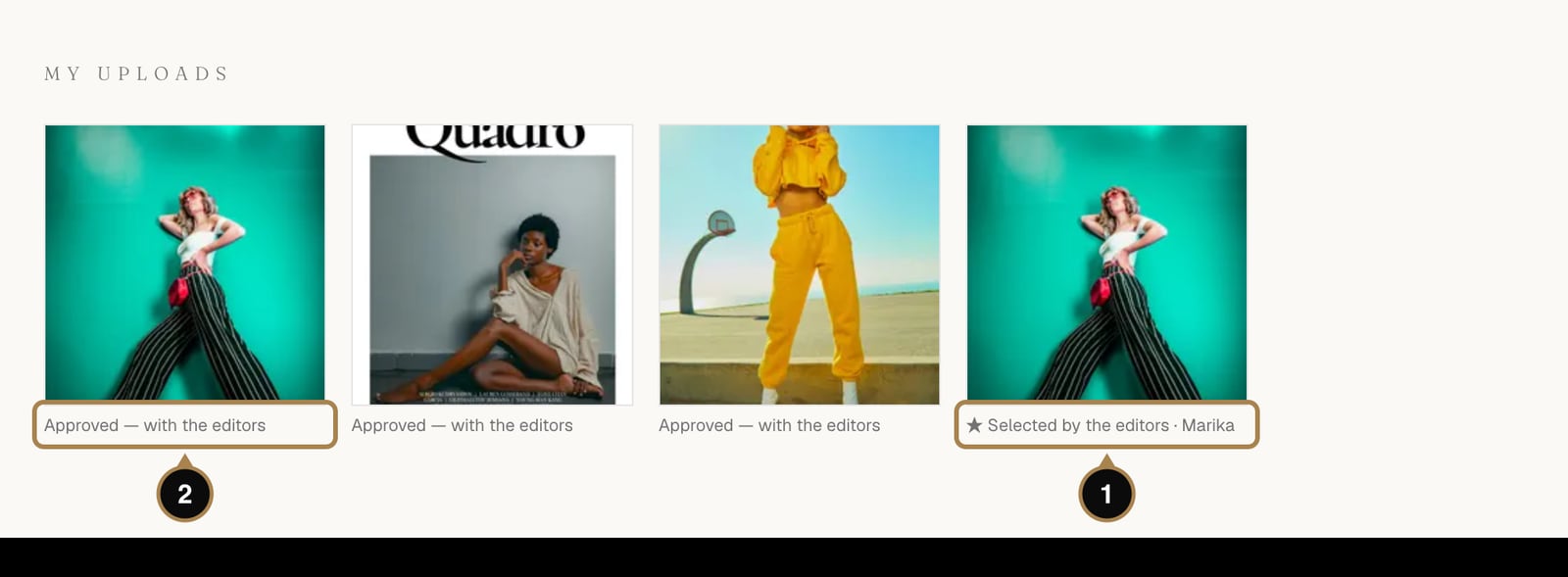
Your uploads and their status live on the upload page and in your account under My feed uploads:
- Approved, with the editors (2). The photo is live in the feed and the editors can see it all week.
- Selected by the editors (1). A magazine chose it. The badge appears on your photo, you get an email, and you receive a personal 20% code for that magazine's paid options, valid for 14 days.
Where the selected works go
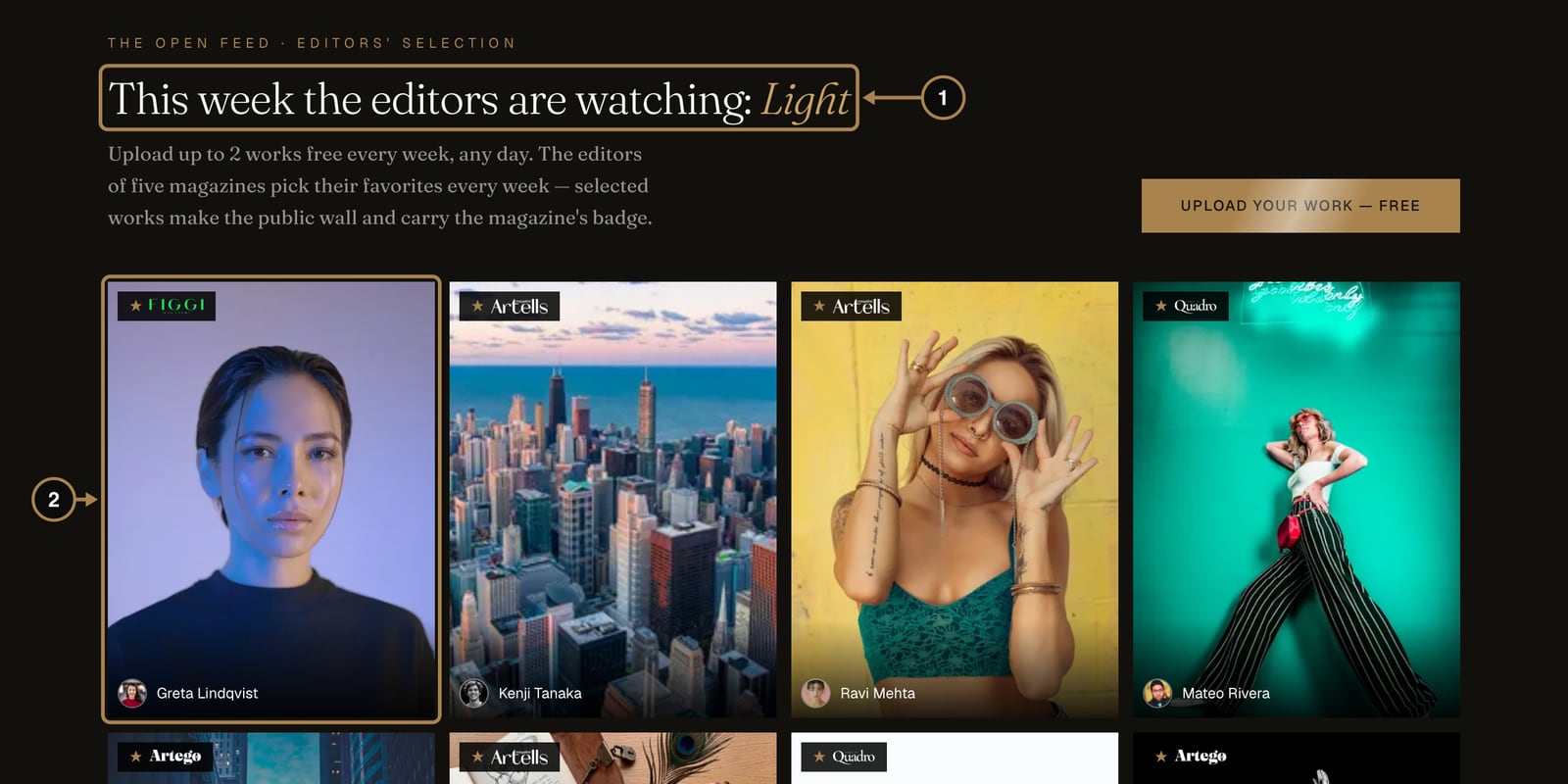
Selected works go up on the homepage under This week the editors are watching (1), with the magazine's badge and your name (2). The editors also use the feed to find authors for upcoming issues, so a selection is often the first line of a longer conversation.
Good to know
- Out of uploads? You can add one more for the current theme from the upload page ($5), or wait for Monday. Inviting friends helps too: each friend who completes a profile gives you an extra upload, up to three.
- Already published in a magazine? The page of your published series has a Share to the Open Feed button. It posts the work with a “Published in …” caption and doesn't use your weekly uploads.
- Feed photos can run in the Awards. On the Awards page you can enter a photo that is already in your feed without uploading it again.
Frequently asked questions
How many photos can I upload to the Open Feed each week? Two for everyone, ten a week with PRO. Your first two live photos each week also add to your Artist Score.
What happens if the editors select my photo? It gets that magazine's badge, you get an email, and you receive a personal 20% code for that magazine's paid options, valid for 14 days.
Does sharing a published series to the feed use up my weekly uploads? No. Share to the Open Feed from a published series page posts separately and never counts against your weekly limit.
Can I enter a feed photo in the Awards too? Yes, without uploading it again. The Awards page lists your feed photos so one click enters one.
What next
Got a frame you're really proud of? Put it in front of the whole community and the editors' jury: How to enter the Awards and why.
Comments
Sign in to join the conversation.
No comments yet — be the first.